

Opening the marker
Start the session with the game type set to Snooker (see Starting a session). The active session panel then shows Open marker, which opens the scoring screen for the current frame.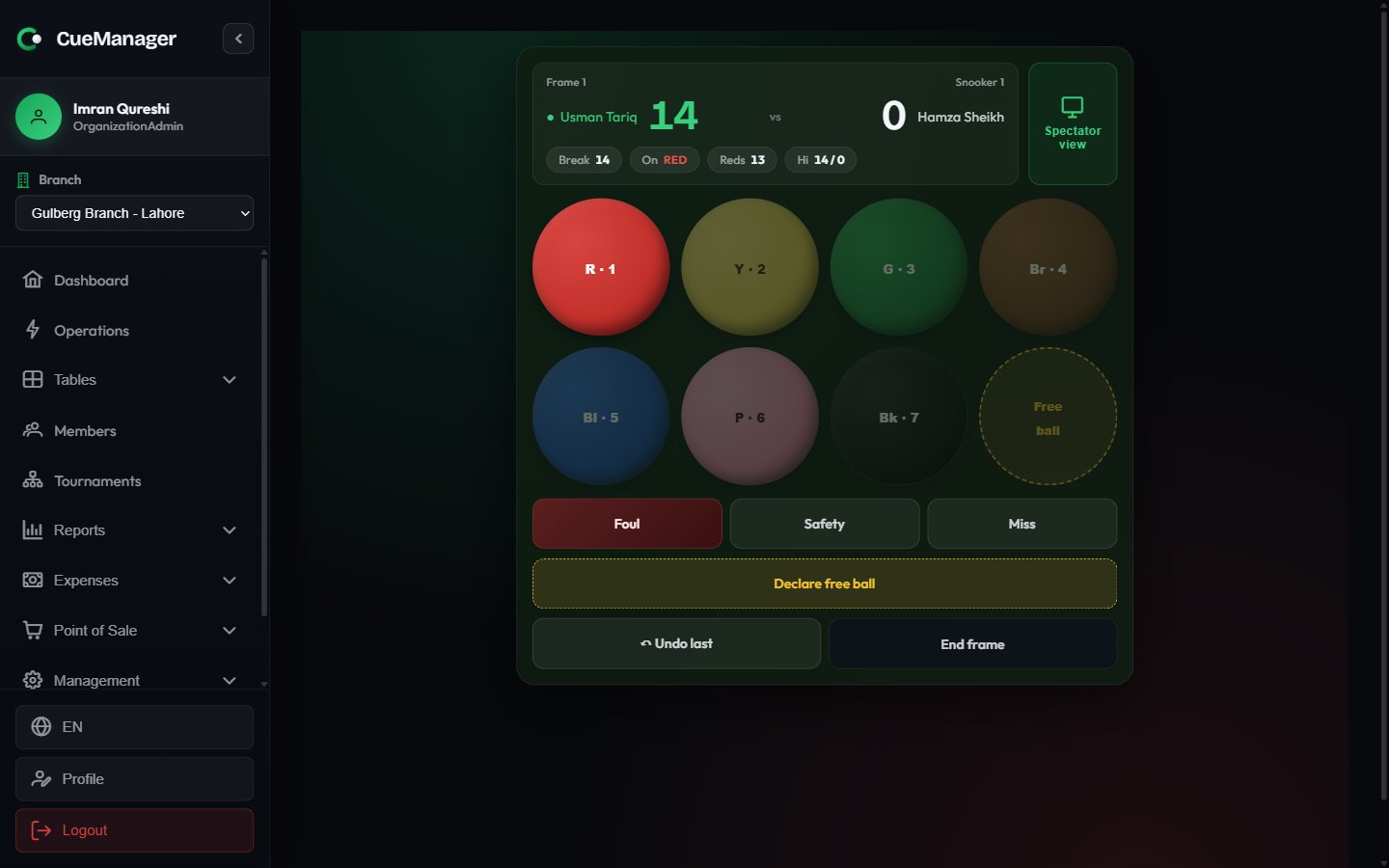
Scoring a frame on the marker
Scoring a frame
1
Record pots on the ball pad
Tap the ball that was potted: red (1), yellow (2), green (3), brown (4), blue (5), pink (6), black (7). Balls that are not legally on are dimmed and cannot be tapped, so the break stays valid.
2
Record a foul
Choose Foul and pick the reason:
The modal shows the Ball involved, the calculated Penalty, and who plays next, ending with Confirm — Bilal Khan plays. The scoring engine on the server has the final say and may raise the penalty if it sees more balls involved.
3
Handle a free ball
After a snooker foul, choose Declare free ball. The Free ball button on the pad becomes tappable so you can score the nominated ball. If the fouled player is offered the shot again, a Play again (replace) button appears.
4
Record safeties and misses
Safety and Miss end the visit without a pot and pass play to the opponent.
5
Place the cue ball when it is in hand
When the cue ball is in hand, the marker locks input and shows an overlay — at frame start, after the cue ball was potted, or after it left the table. It says “Place cue ball anywhere inside the D”, names the ball-on, and unlocks when you choose Ready — record next shot.
6
Correct a mistake
Undo last removes the most recent shot. It is disabled when there is nothing to undo.
7
End the frame
End frame asks to confirm: “This closes the frame and triggers session billing for it.” Accepting closes the frame, charges it to the loser, and shows the Frame ended banner with the winner and final score. Back to tables returns you to the floor.
Ending a frame here is what bills it. The result also raises a Frame Finished alert for the rest of the club to acknowledge — see Running a session.
The spectator scoreboard
Spectator view in the marker header opens a second, read-only screen sized for a wall display or projector. It shows both scores at full height, the current break, the ball on, reds left, a free-ball indicator, a foul banner as fouls happen, and a cue-ball-in-hand overlay — all driven live from the marker with no input of its own.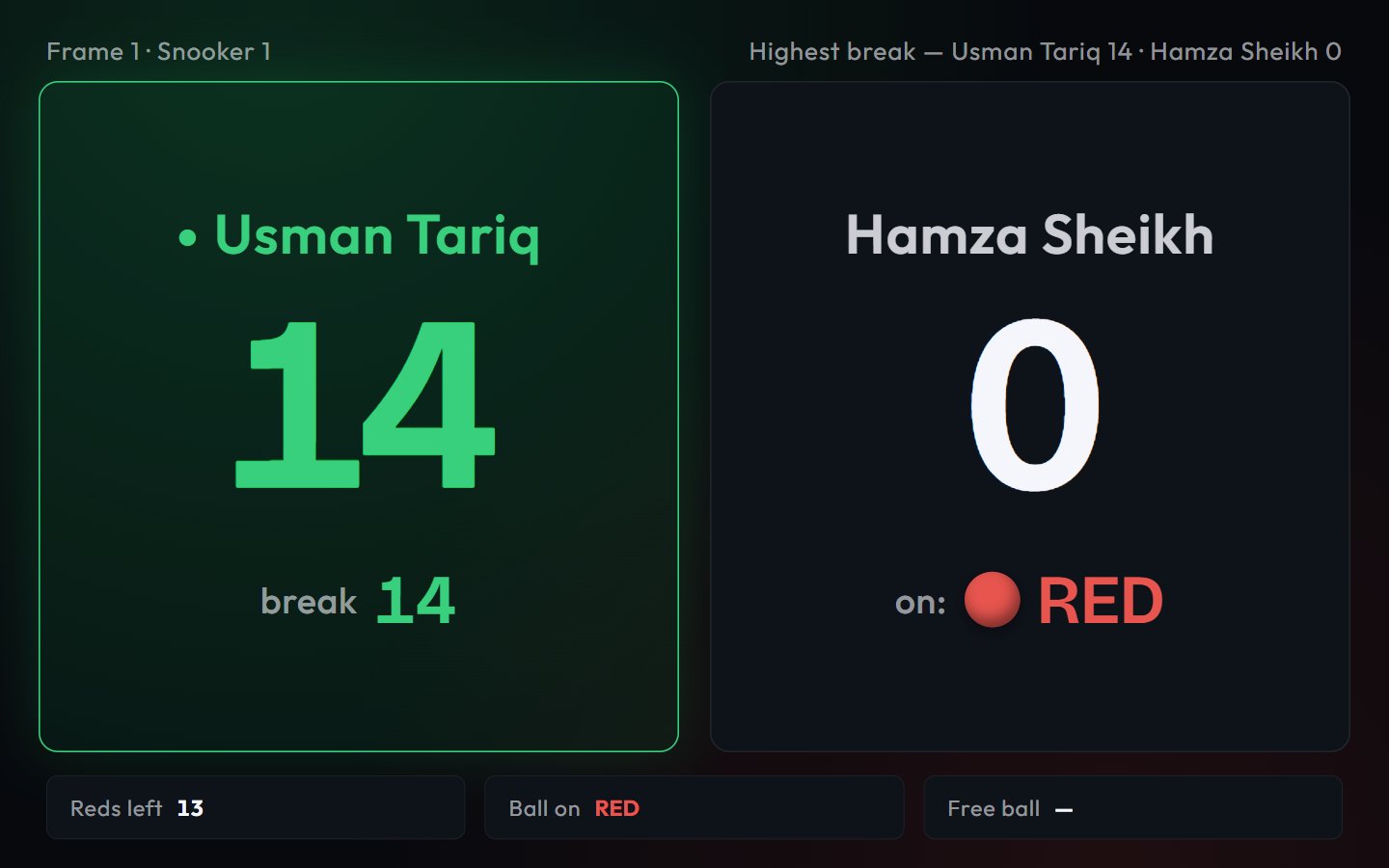
The spectator scoreboard on a wall display
Scoring offline
The marker keeps accepting shots with no connection. Completed frames are held on the device, counted by a pending badge on both the marker and the session panel, and sent when the connection returns. The offline chip in the header tells you when that is happening — see Offline and sync.Related pages
- Starting a session — choosing Snooker as the game type
- Running a session — frame alerts and the session panel
- Checkout and payments — how frames become the bill
- Roles and permissions — the Marker role, for scoring-only staff